This tip is great for when you want to quickly jump to any effect, instrument or rack on a given track in Ableton Live.
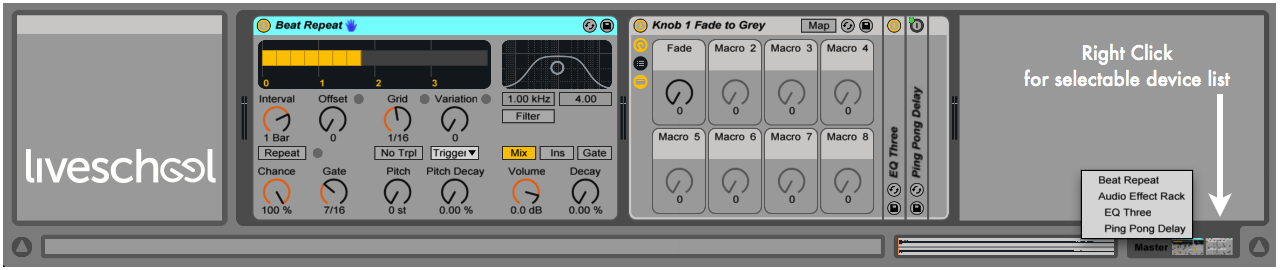
By right-clicking the Device View Selector (as shown in the image) you will see a list of all devices on that track. By selecting any of them, the display will scroll and navigate to show you that device – even if it was enclosed within a rack.
This navigation shortcut will speed up your workflow, faster than than regular device navigation, in the following situations:
- if you’re using a scroll-wheel mouse instead of a trackpad that allows you to easily scroll left and right
- when you have devices in racks, particularly when those racks are grouped within other racks
- when racks contain multiple chains of devices
- it’s a quick way to see what’s inside any rack you haven’t built yourself
Another aspect of this feature is that it actually selects the device for you, meaning if you have a MIDI controller handy (one that “instant maps” to Ableton Live), then you can start turning the dials straight away.
Sometimes it’s the small things that make a production session that much more efficient.
Subscribe to our newsletter to keep up with our latest free tutorials, samples, video interviews and more to educate & inspire your music production.
Learn more about our Producing Music with Ableton Live.