Ableton 12.3 Is Here!
Ableton Live 12.3 has landed with some seriously impressive workflow improvements. We were so excited about these features that we immediately fired up the studio to test them out – and the results speak for themselves.
In This Video:
- New Stem Separation Feature
- Splice integration with sound-matching
- Bounce Grouped Tracks
These are just a few of the major new features in Live 12.3. And they’re so easy to use that the video took about as long to make as you’re seeing played out!
The music was made by the Chelsea Warner during a recent Method Lab class a stellar producer who recently relocated to Los Angeles from Sydney.
Next, let’s dive deeper into some of the other standout features in this update…
Creative Features
New Device A/B mode
This video shows Ableton’s new A/B feature:
You can use Compare: Switch to A/B to toggle between two different device states: A and B. Each state can have its own unique set of parameter values. You can, for example, use state A for tweaking values while leaving state B at the device’s default settings, and then switch between the two to assess the differences. The corresponding shortcut for comparing device states is [P]
Enhanced Effects
Reworked auto-pan / tremolo
The updated Auto Pan device gets a major upgrade and a new name – Auto Pan-Tremolo.
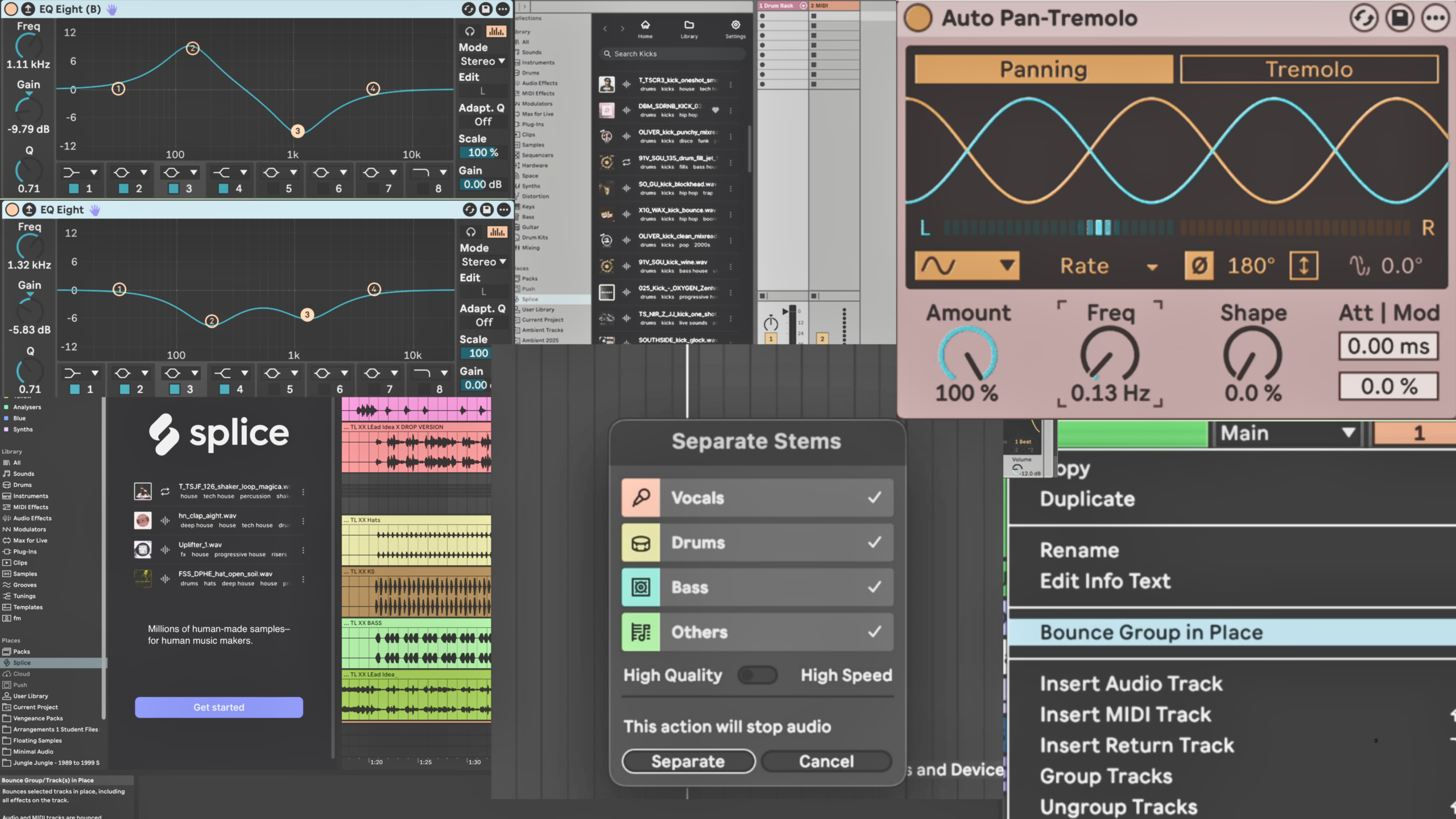
Now you can choose between dedicated Panning and Tremolo modes, each with its own real-time visualisation showing exactly what’s happening to your sound.
There’s so many new settings that turn the humble panner into a truly creative sound-design tool:
- The new LFO options include musical divisions (16th, triplets, dotted) plus a Time mode for creating those super-long, evolving modulations that can span several seconds.
- Other new time-based added:
- The Att/Mod setting allows you to fade-in the effect, so the pan or tremolo is more pronounced at the ends of phrases
- The percentage setting at bottom-right is like an envelope follower so that louder incoming signals change the speed of the pan/tremolo.
- Tremolo mode is more a naming clarification of what is achieved when the panning-mode’s Phase dial is set to zero: the pulsing of both the left and right volumes are synchronised, resulting in a tremolo effect.
- Extra tremolo features are also added:
- In Tremolo mode, two small icons on the left (which look like a crossfade and fade-in) will actually alter the harmonic components. The left one will vary between low octaves and high, and the right will add some pulsing harmonic distortion.
Workflow Improvements
Splice Integration
Splice is a massive and ever-growing sample library – and not just loops, but also one-shot sample hits, and rent-to-own VSTs. Ableton’s Splice feature is more than just a sample browser. It truly integrates with your setup in the following ways:
- Browsing the Splice library plays in-time with your Live Set.
- Dragging a sample in from the Splice display adds it to your User Library folder in Live.
- Dragging sound from your Live Project onto the “Search with Sound” widget will cleverly match and suggest sounds / loops that fit your song’s tempo and key.
Splice is a paid subscription service, with a free trial period, and if its your first time trying it out there’s a button in Live’s Splice window that explains how to hook it up.
It’s worth a mention that, while not everyone is a fan of using loop libraries in their music – usually for concerns about artistic originality – the reality is that creative use of loops, how you edit and transform them, is just as valid as creating sounds or composing parts from scratch. They key point: creatively transform them. Perhaps a bigger, yet less-discussed, concern is the chance of getting pinged on Youtube for copyright infringement (even though the samples are royalty-free, the algorithm might detect someone else has used that sample) – but this is also overcome by creatively transforming the loops / samples you use in your music. Or even using loops as an idea starter that you later replace.
Paste Bounced Audio
Here’s a workflow game-changer: you can now copy any MIDI or audio material and paste it as bounced audio directly onto an audio track. Just copy your selection, right-click an audio track, and choose ‘Paste Bounced Audio’ – no more need to bounce to new tracks every time. The smart part? It bounces whatever state your material is in at that moment, so you can tweak settings and paste again for instant variations.
You can use this on single or multiple selections. And you can do it to full track(s), a group, or just a time-selection.
New Icons
This might seem like a tiny detail, but man does it make browsing so much better. For example, in Live 12.3, clicking Live’s Drums browser it’s so much clearer what you’re choosing – a Drum Rack, the Drum Sampler, an audio sample, or a Live Clip.
Little things like this in a software update can improve the overall flow-state of your creative sessions.
Stem Separation Details
One of the biggest additions to Live Suite is the new built-in stem separation tool that works entirely on your machine – no internet connection needed. It intelligently splits any audio into four distinct parts: Vocals, Drums, Bass, and everything else (aptly named “Other”).
The process is really easy to use and sounds prreettyyyyyyyy good. As stem separation tools go, it’s certainly up there with other workable options. Whether you’re working with files in the browser or clips already in your Session or Arrangement View, just right-click and choose “Separate Stems to New Audio Tracks.” Live automatically creates a new Group Track with each stem on its own individual track, and how about this… any effects you had on the original track get copied to the Group Track too! The original clip gets muted so you’re not hearing double, leaving you free to work with the separated elements.
This opens up huge possibilities for remixing (see bootlegging), sampling, or just isolating that perfect drum break from a full track.
With stem splitting available right inside the DAW, we do wonder if law makers are going to be forced into rethinking the current royalties / copyright system – more on that thought later.
A note from Ableton about stem separation:
- To enable a high-quality option for stem separation, add
-_Feature.StemSeparation.HighQuality=Trueto the Options.txt file. For us, this was a must-do, as all stem separator solutions can have lossy / low-fi results. - They also explain that stem separation may run very slowly on older Windows systems, so if that’s you, check the minimum system requirements before installing the update.
How to get Live 12.3
This is a free update for all Live 12 owners:
- The Stem Separation feature is only available in the Suite version. All other features are available in Standard and Intro
- Live 12.3 is currently in public beta testing – which means you can download the test version and start using it before the full release. Here’s how to access the beta: https://help.ableton.com/hc/en-us/articles/115001663870-Live-Beta-FAQ
- As with any software, beta versions might have some occasional errors, so if you’re working on a critical project consider holding off until the final version is fully released.